
Create your store
It takes about 2 minutes and your store goes live straight away, on a 14-day free trial — no payment needed now.
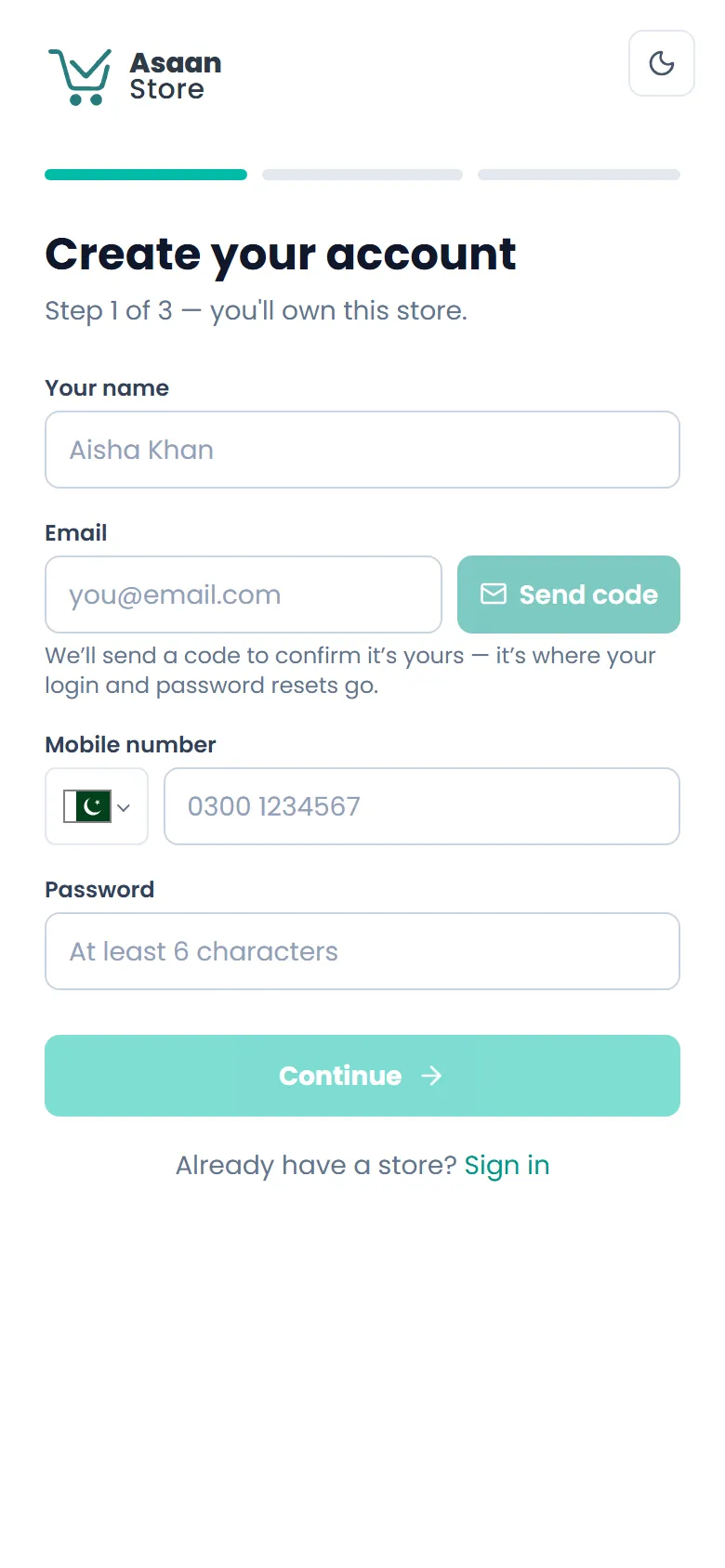
- 1Go to asaanstore.com and tap Get started.
- 2Enter your name.
- 3Enter your email and tap Send code. Type the 6-digit code from your email and tap Verify. This is the email you'll sign in with.
- 4Enter your mobile number and choose a password (at least 6 characters). Write it down somewhere safe.
- 5Next, name your store. The name becomes your web address — for example noorboutique.asaanstore.com. Choose what you sell.
- 6Pick a plan and tap Create my store. You can change plans later.
- 7Tap Go to my dashboard. We also email you a button that signs you straight in.
Sign in to your dashboard
Your dashboard is where you add products, see orders and change your store. There's one address to remember.
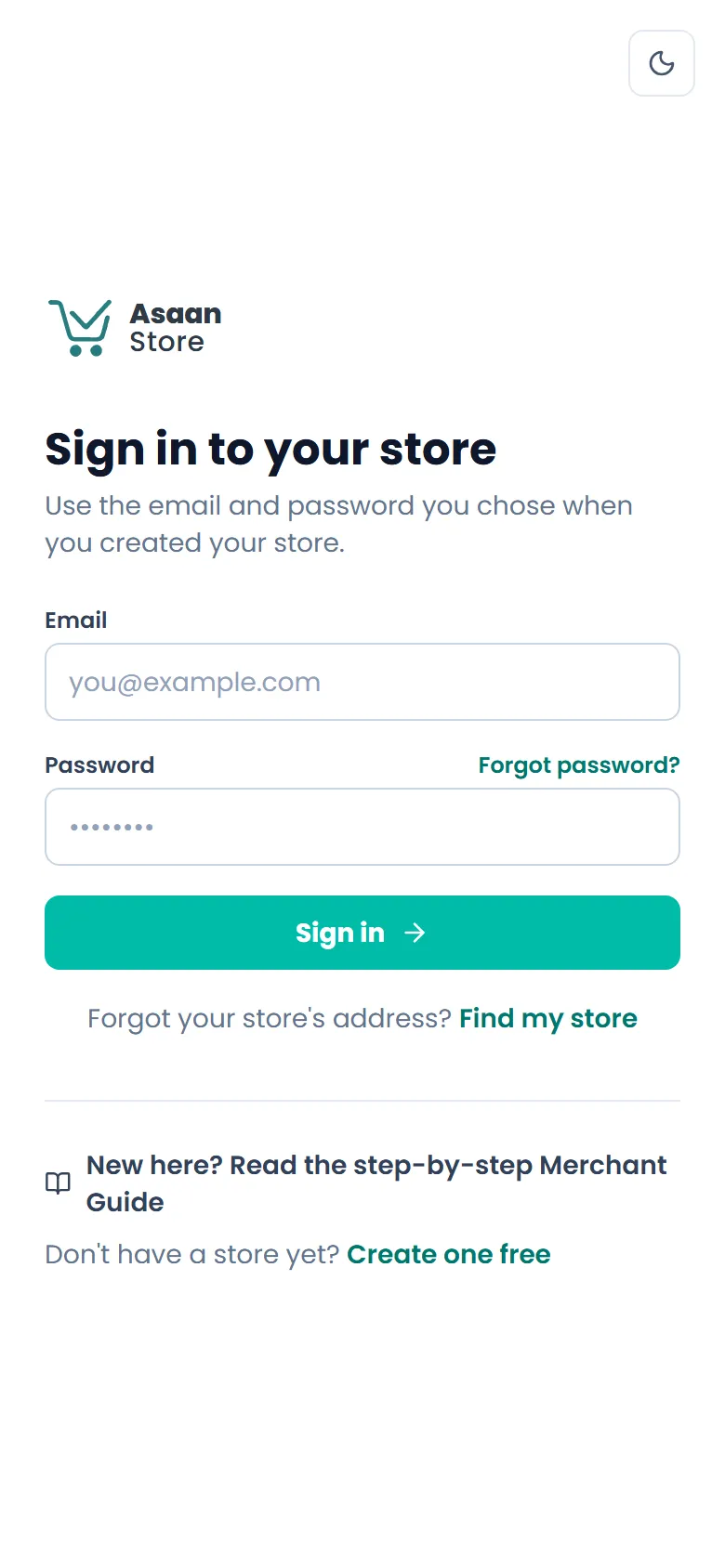
- 1Go to asaanstore.com/login (or tap Sign in on asaanstore.com).
- 2Enter the email you signed up with.
- 3Enter your password and tap Sign in. We take you straight to your store's dashboard.
Forgot your password or store address?
No problem — we'll email you everything you need to get back in.
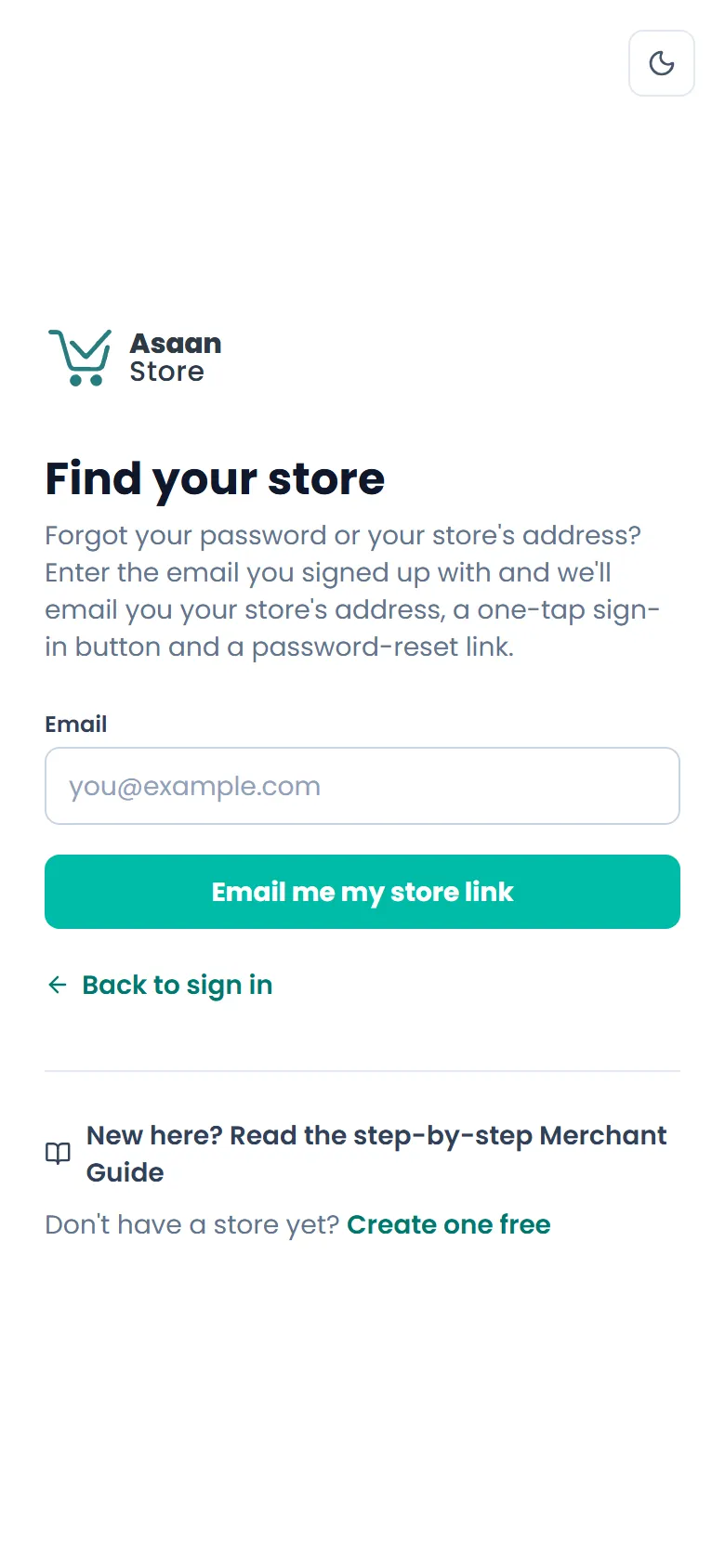
- 1Go to asaanstore.com/login and tap Forgot password? or Find my store.
- 2Enter the email you signed up with and tap Email me my store link.
- 3Open the email. It has your store's address, an Open my dashboard button that signs you in (it works once, for 24 hours) and a Reset it here link to choose a new password.
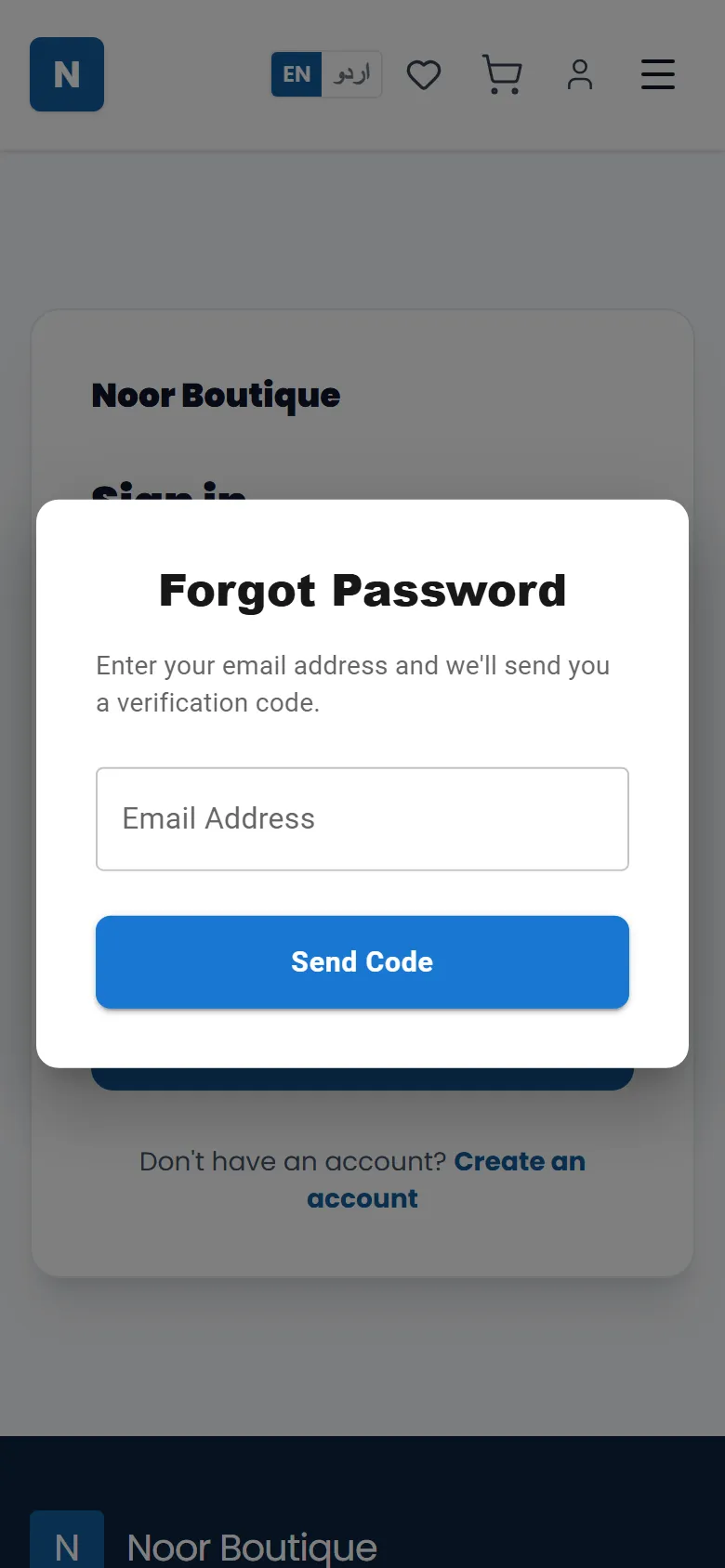
- 4To reset: on your store's sign-in page tap Forgot password?, enter your email, tap Send code, then type the code from your email and choose a new password.
See your website the way customers do
Your store is a real website your customers can visit and order from — no app needed.
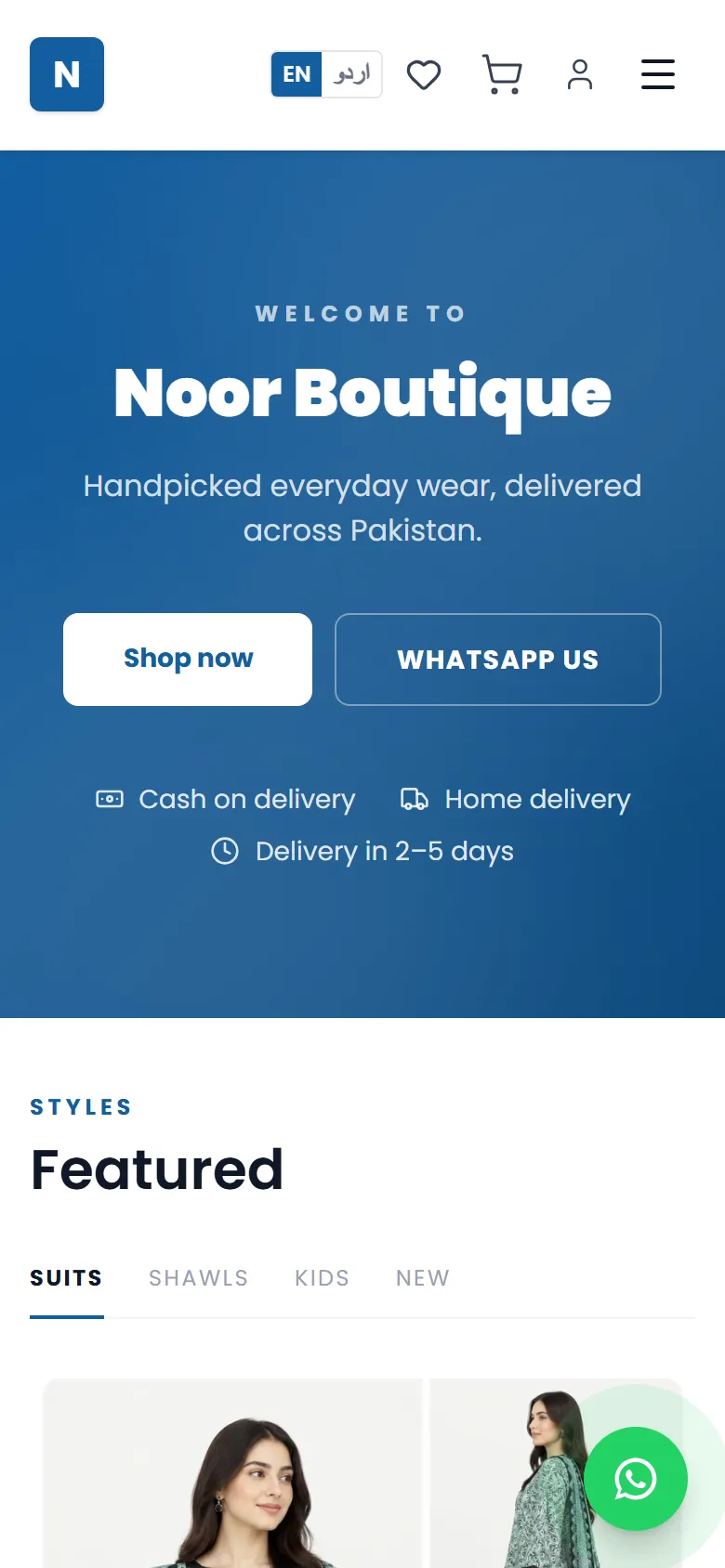
- 1In your dashboard, tap View store at the top (on a phone it's the small button next to your initial). It opens your website in a new tab.
- 2Or simply type your store's address into any browser — for example noorboutique.asaanstore.com.
- 3Share that address with customers on WhatsApp, Instagram and Facebook. That's your shop!
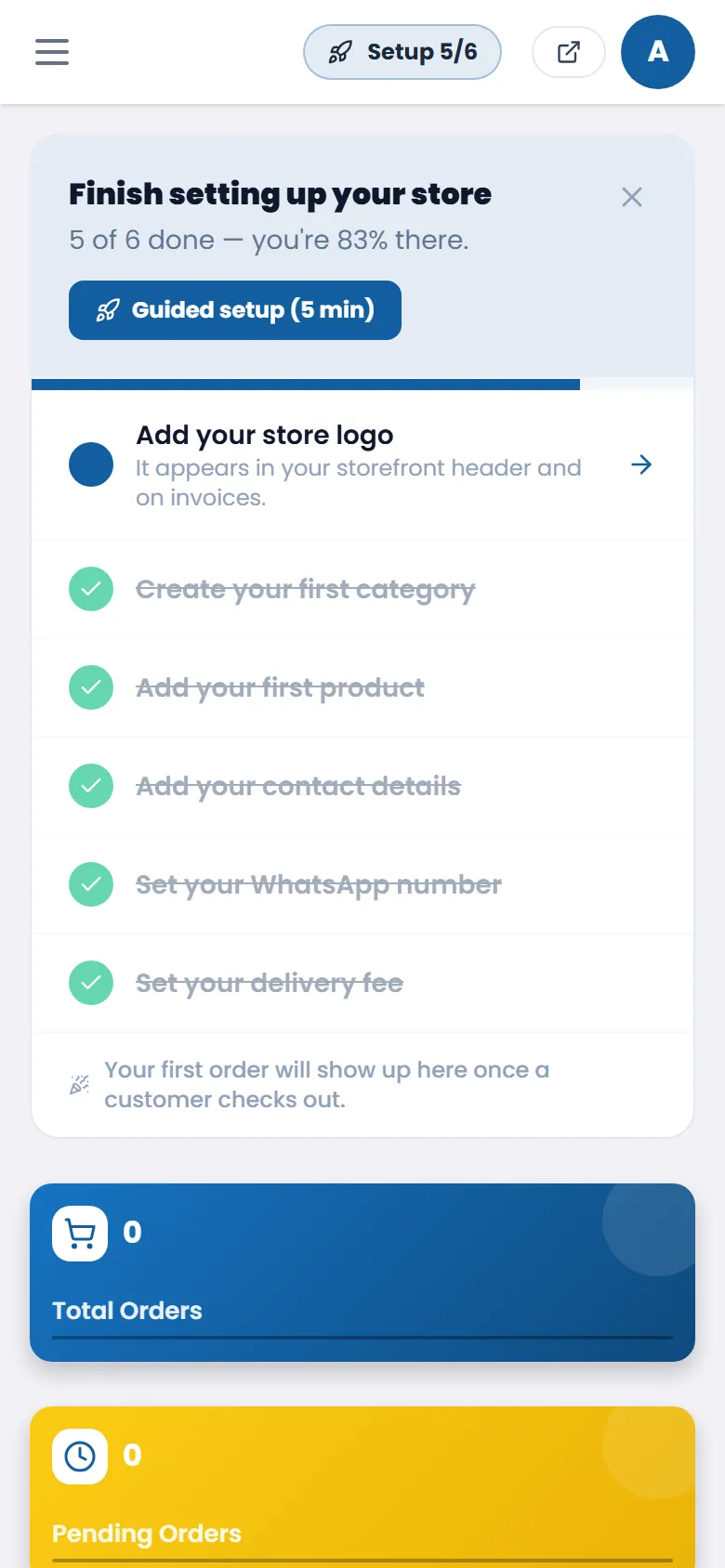
Set up your store
Your dashboard shows a Finish setting up your store checklist with exactly what's left — tap any item to go straight there, or tap Guided setup to do it step by step. On a phone, tap the ☰ menu at the top-left to see every section. Here's what each part does.
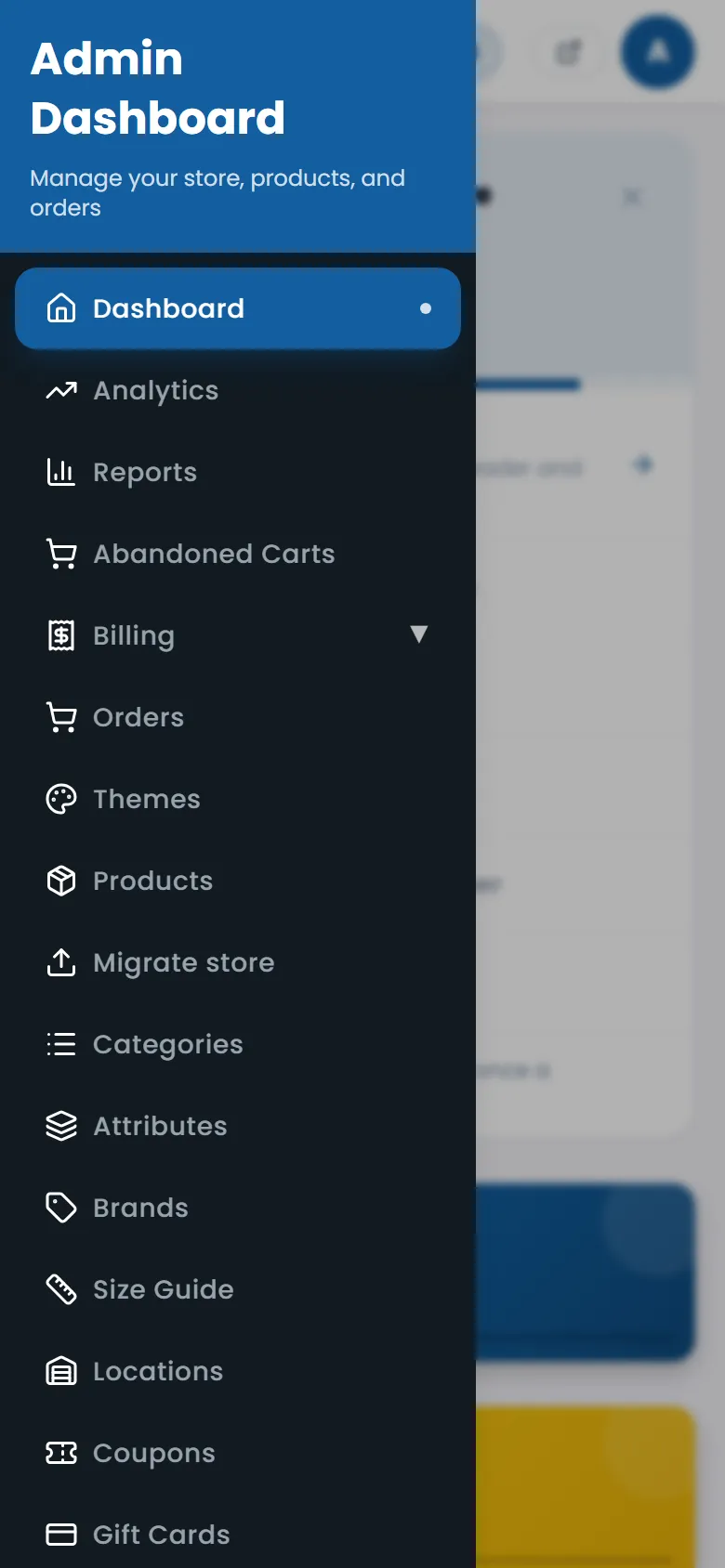
Logo, WhatsApp & contact details
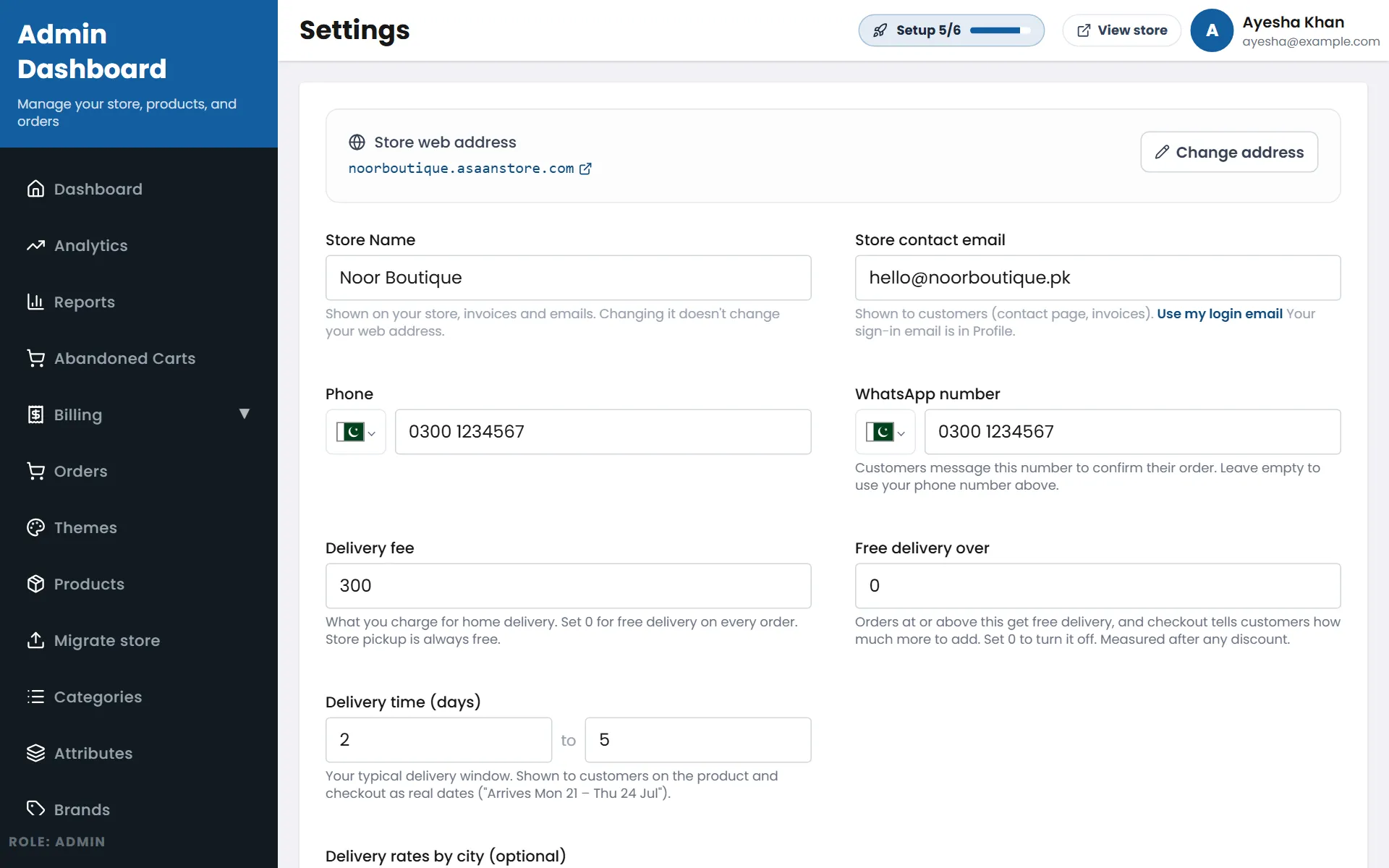
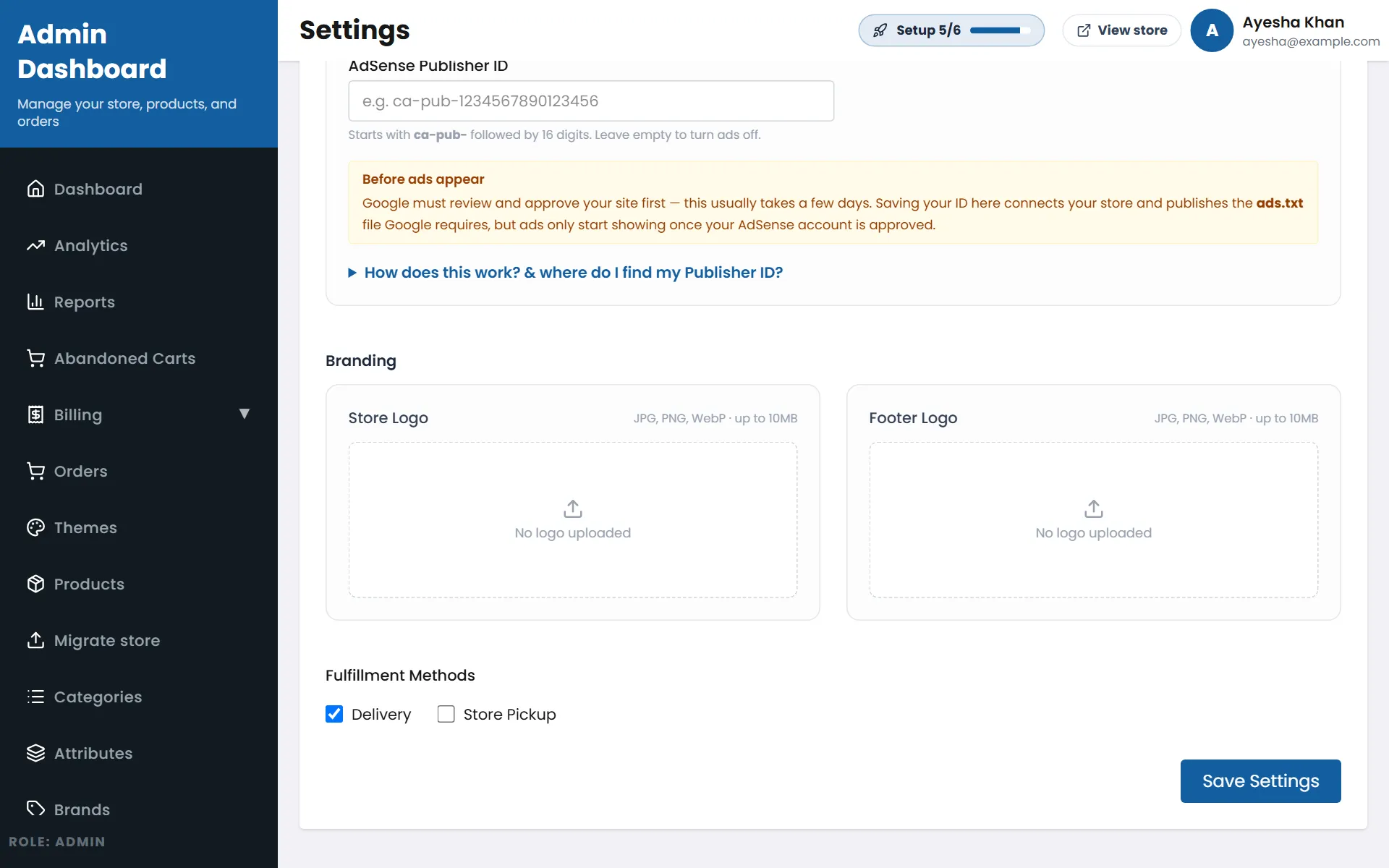
- 1Open Store Settings from the menu.
- 2Check your store name, and add the contact email and phone customers should use.
- 3Add your WhatsApp number — customers message it to confirm orders, and it shows as a WhatsApp button on your website.
- 4Set your delivery fee and delivery time.
- 5Scroll down to Branding and upload your Store Logo (JPG, PNG or WebP). Then tap Save Settings.
Choose a theme
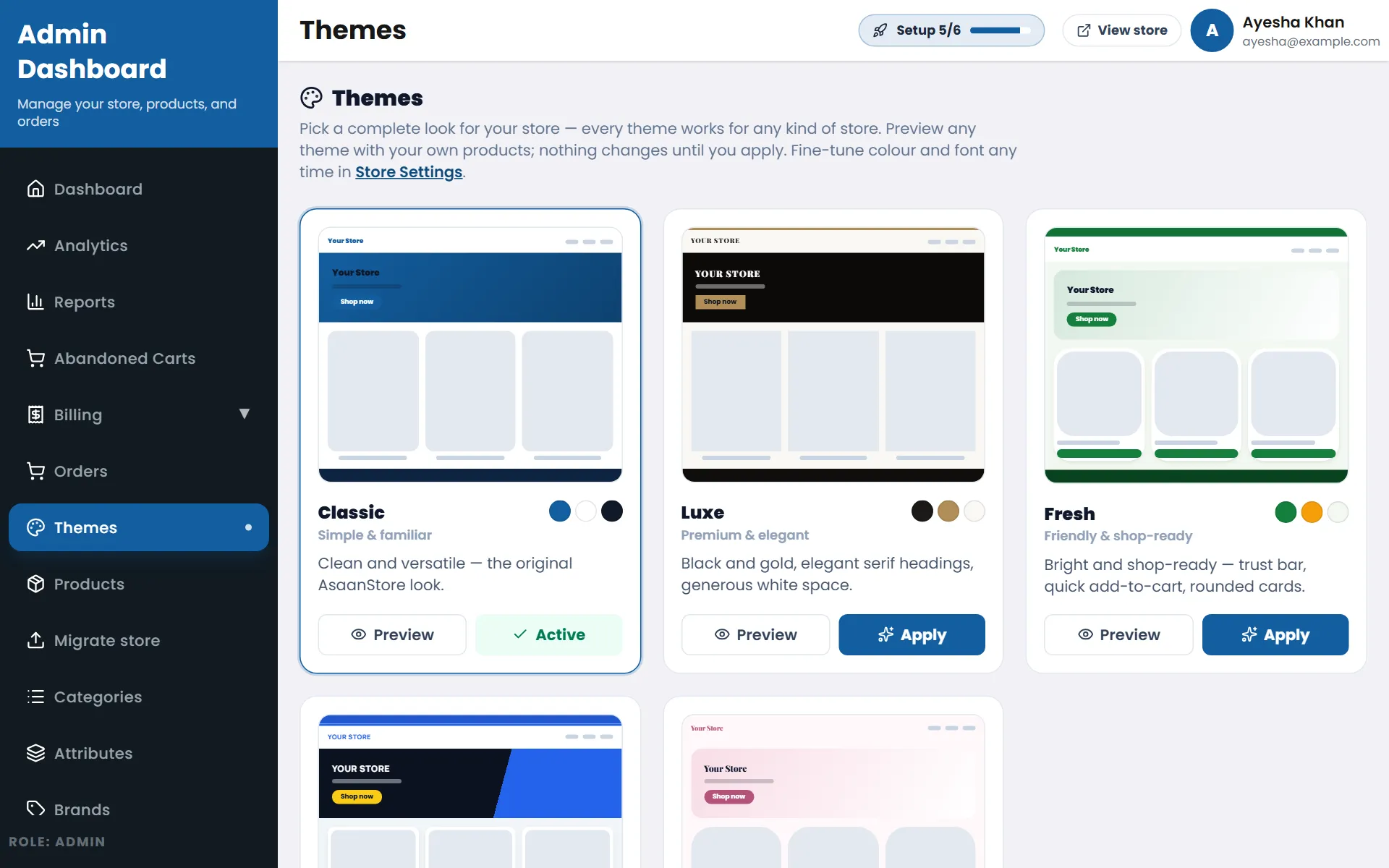
- 1Open Themes from the menu.
- 2Tap Preview on any theme to see your own store in that look — nothing changes yet.
- 3Like it? Tap Apply. You can switch back any time; your products and pages stay the same.
Your home page
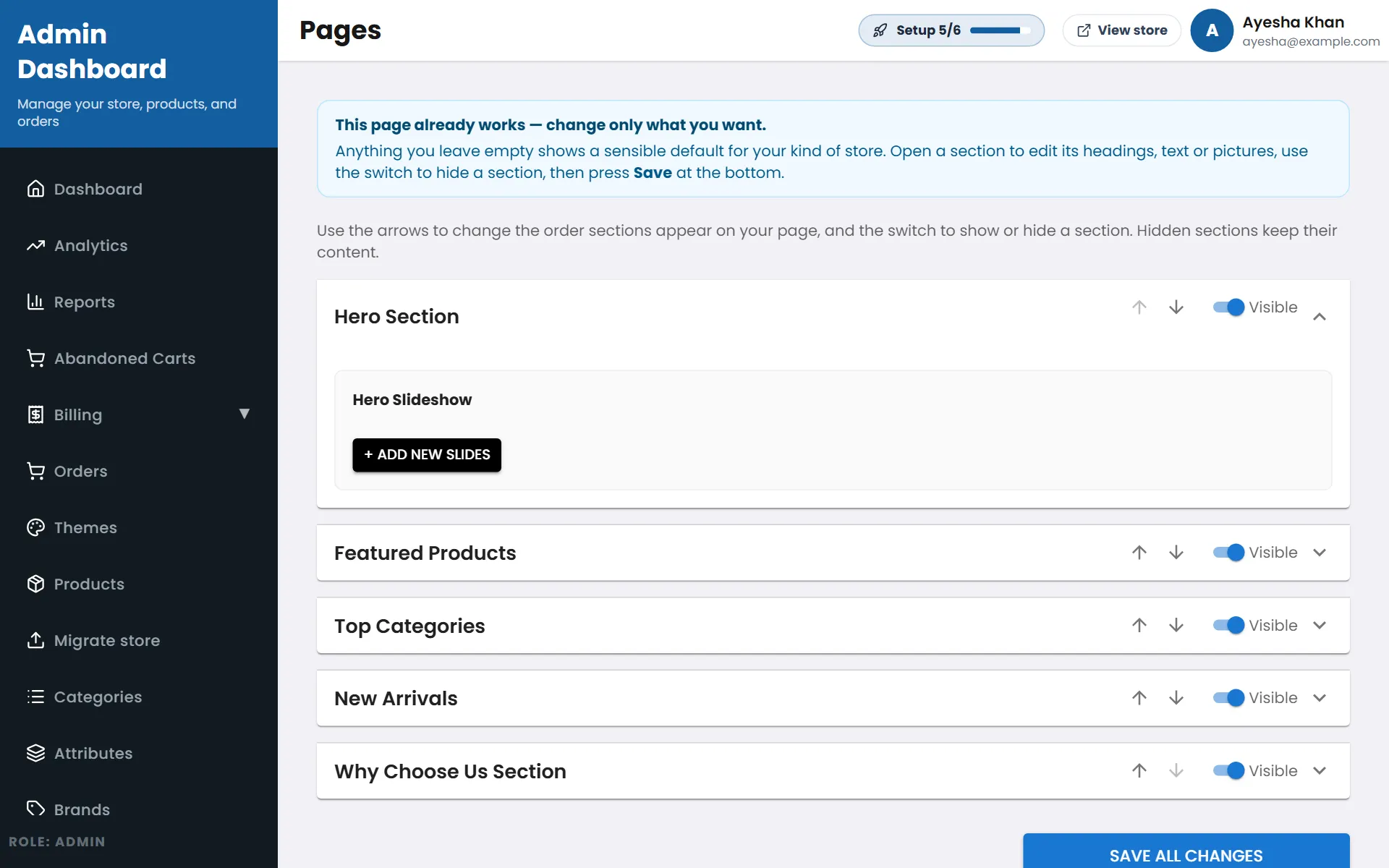
Your home page already works — it fills itself from your products. Change only what you want.
- 1Open Page Settings → Home Page.
- 2In Hero Section, tap Add new slides to upload your banner pictures (one wide picture for computers, one tall picture for phones).
- 3Open Featured Products to pick which categories to show and change the headings.
- 4Use the arrows to change the order of sections and the Visible switch to hide one.
- 5Tap Save all changes at the bottom.
Categories & products
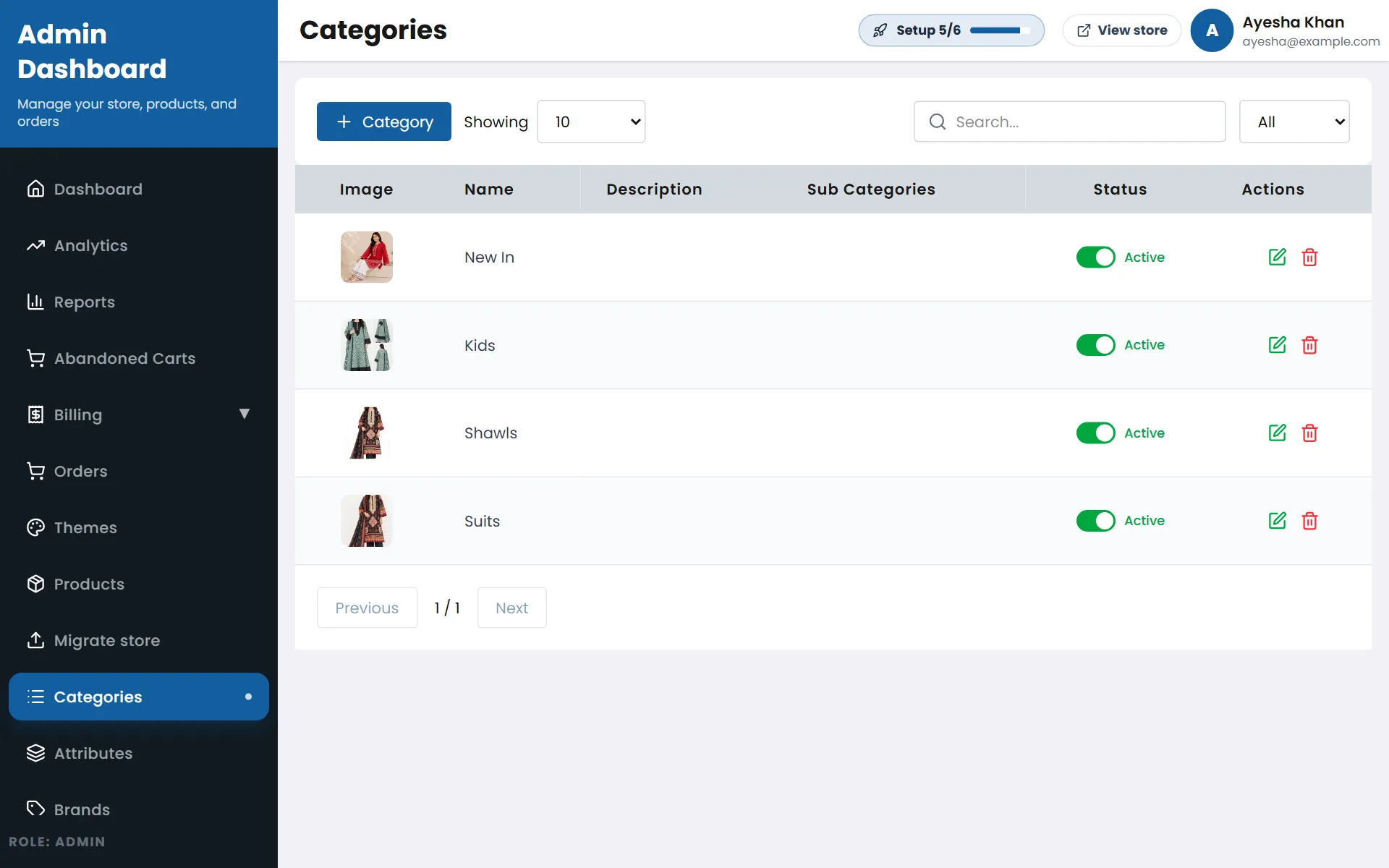
- 1Open Categories and tap + Category — for example “Suits”, “Shawls”, “Kids”. Add a picture for each.
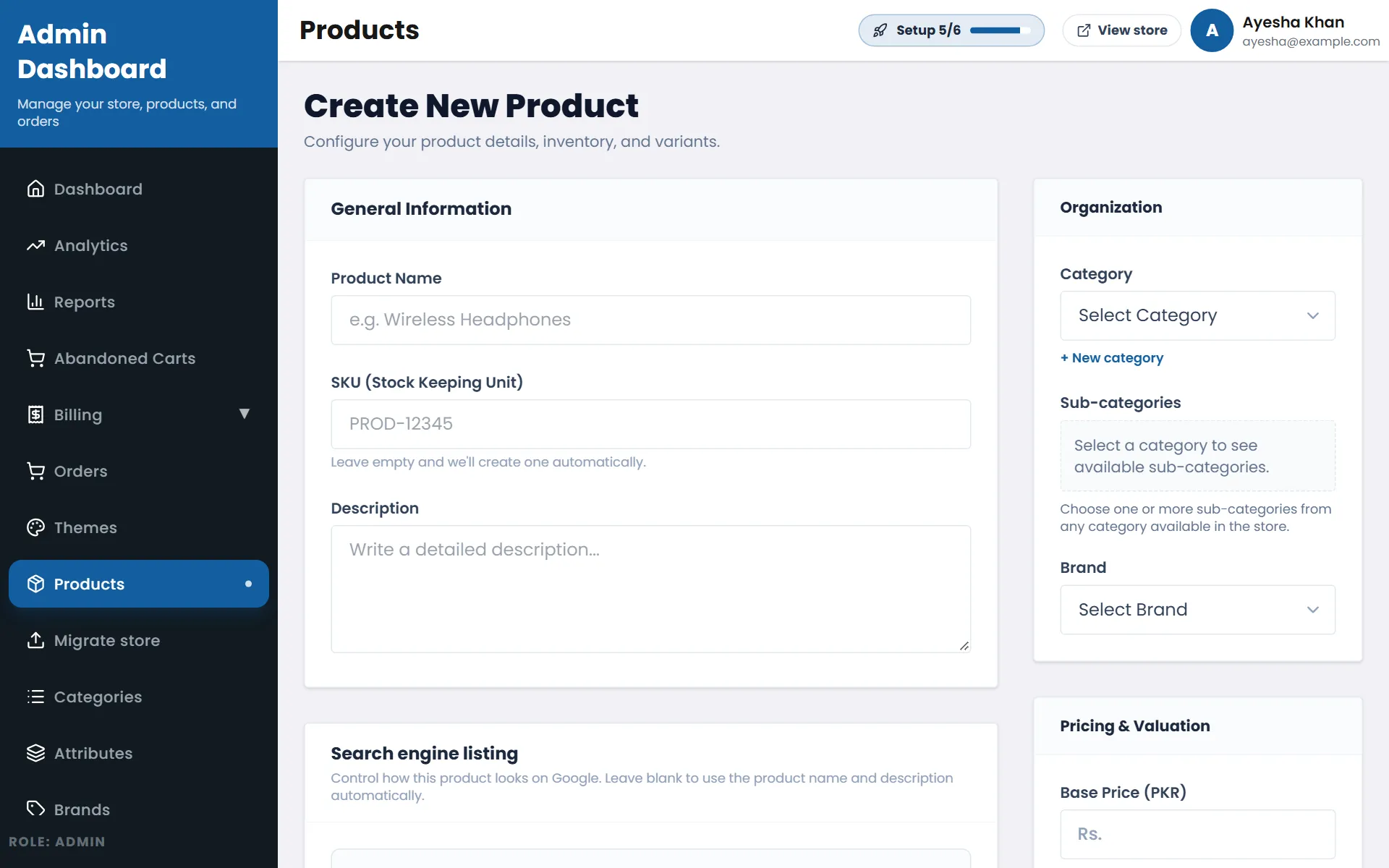
- 2Open Products and tap Add product.
- 3Enter the product name and a short description.
- 4Choose its category (or tap + New category right there).
- 5Add the price, upload clear photos, set how many you have in stock, and save.
Your contact page
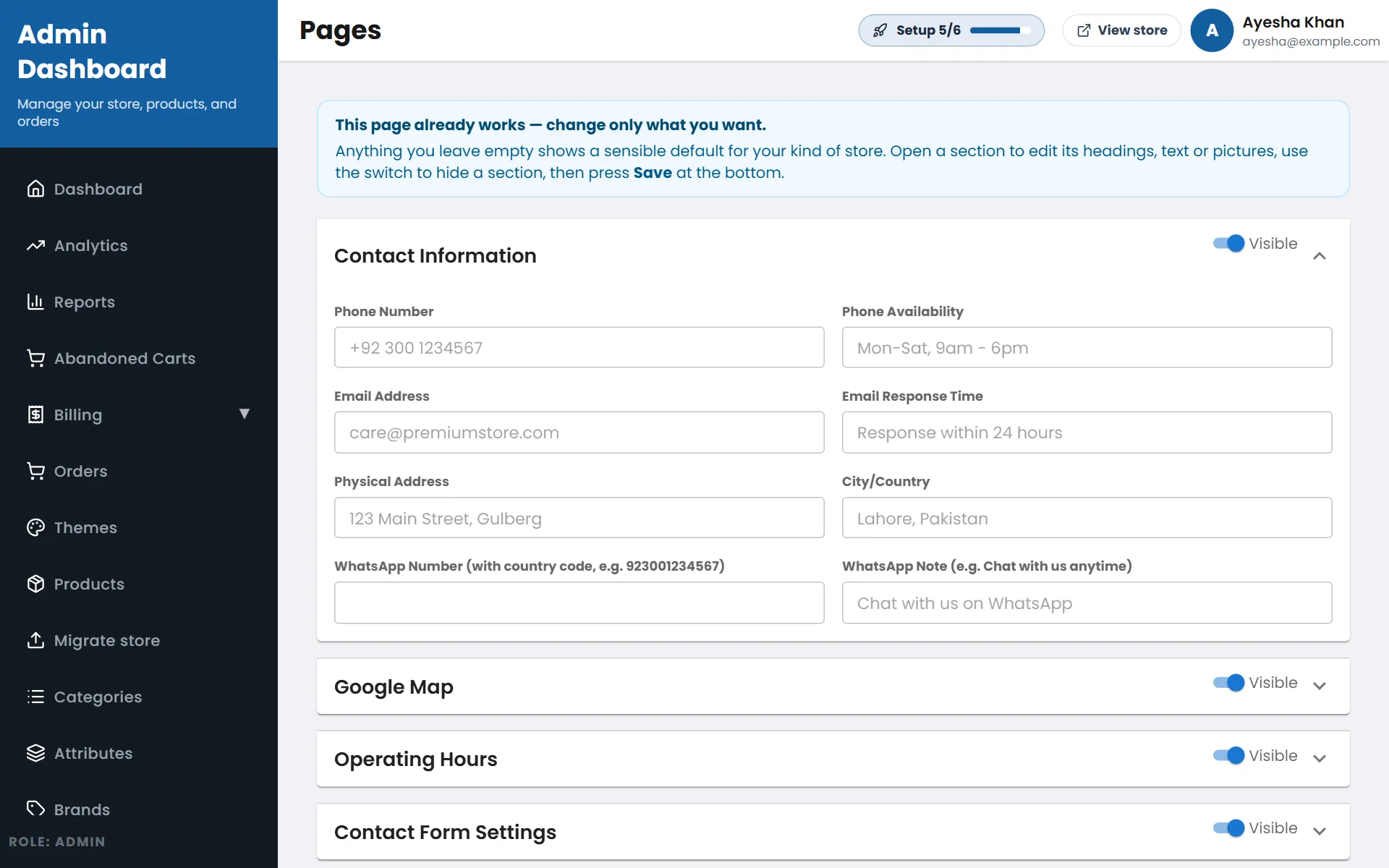
- 1Open Page Settings → Contact Page.
- 2Fill in your phone, email, address and WhatsApp number — anything you leave empty simply isn't shown.
- 3Optionally add your Google Map and operating hours, then save.
Get your first order
Your store is ready — now bring customers to it.
- 1Share your store's address in your WhatsApp status, groups and broadcast lists.
- 2Put it in your Instagram and Facebook bio, and in your posts.
- 3When a customer orders, it appears in Orders in your dashboard — confirm it with them on WhatsApp and send it out.
Questions
›I can't remember my store's address.
Go to asaanstore.com/login and tap “Find my store”. Enter the email you signed up with — we'll email you your store's address and a button that signs you in.
›I forgot my password.
Tap “Forgot password?” on asaanstore.com/login (or on your store's own sign-in page). We'll email you a reset link or code. If you can't find the email, check your spam folder.
›Which email do I sign in with?
The email you used when you created your store — the one we sent the welcome email to. Your store's contact email (shown to customers) can be different.
›My store looks empty to customers.
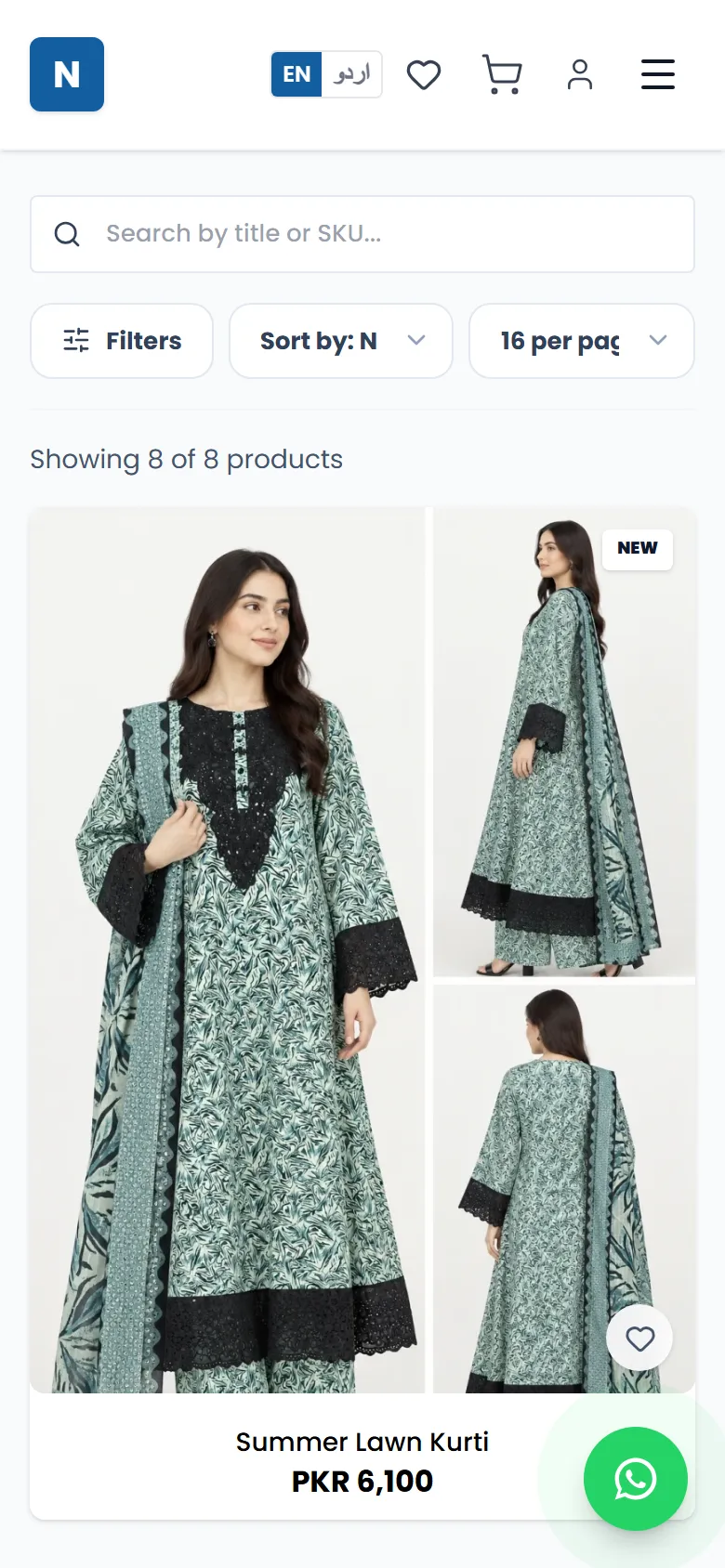
Add at least one category and a few products with photos and prices. Your home page fills itself from your products — you don't have to design anything.
›Can I do all of this on my phone?
Yes. Everything works on a phone — tap the ☰ menu at the top-left of your dashboard to see all sections. Adding many products is a little quicker on a computer.
›Do I have to pay now?
No. Every new store starts with a 14-day free trial. We'll send your first invoice before the trial ends.
Still stuck? We'll help.
Send us your product photos and prices and we'll help you add your first products.